1. Check CC and the files beside your video
Open the video and inspect its tracks in CC. An MKV can contain several subtitle tracks even if only one appears initially. If English is listed, select it and make sure subtitles are enabled.
Also check for a matching file beside the video, such as HolidayFilm.mkv and HolidayFilm.en.srt. The subtitle must belong to that video; an unrelated SRT in the same folder is not enough.
An image subtitle such as PGS is not the same as a text track that can be translated directly.
2. Look for matching English subtitles
Choose English as the subtitle language. Use Find matching subtitles in Simple or the Smart Subtitle Assistant in Pro. The player first checks useful existing subtitles. Button labels may differ with the interface language.
Simple uses its own Cloud search route without requiring your own OpenSubtitles login. Pro has separate provider and Cloud settings. Availability depends on the video, subtitle service and chosen route: not every title has a suitable match.
Check both the version and timing. A subtitle for another edit may look plausible but drift further out of sync during playback.
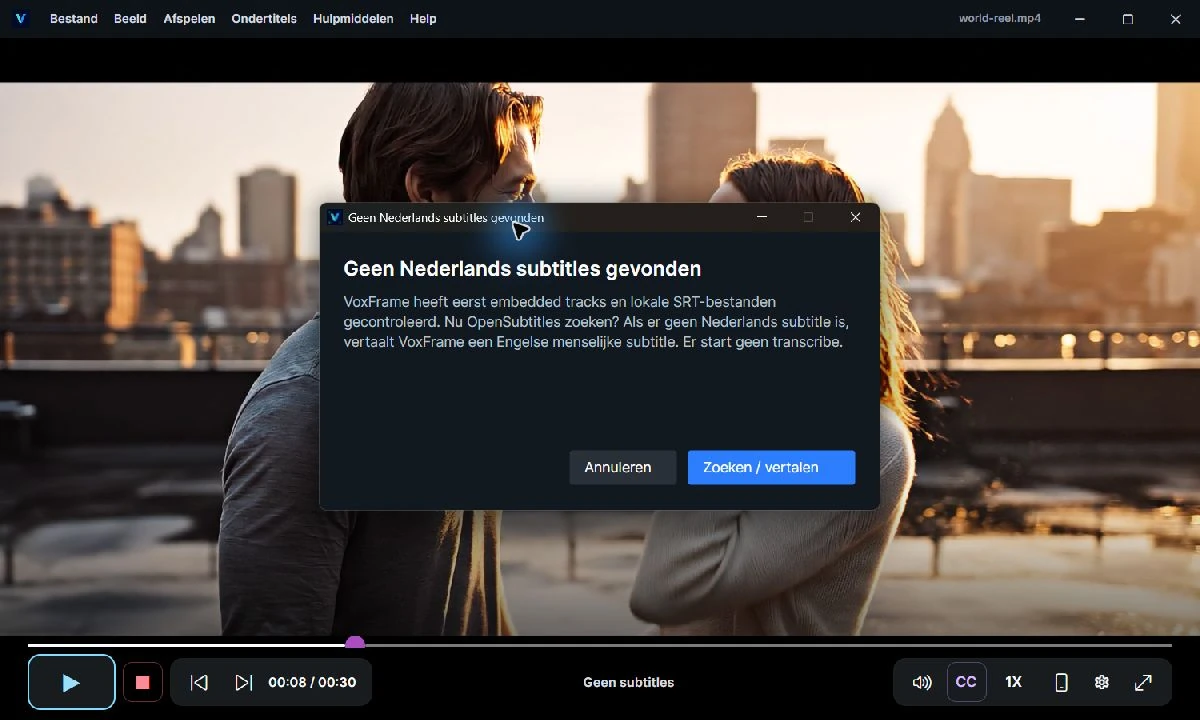
3. Found another language? Translate the text
If no matching English subtitle is available, a suitable human-authored subtitle in another supported language can be a useful source. Check that it matches the video, then translate it into English.
Translation works from existing text. Transcription must first recognize the spoken audio. Starting from a good subtitle avoids unnecessarily repeating that recognition step.
4. Generate subtitles automatically by transcribing the video
When no suitable text track exists, video transcription uses AI to turn speech into text. A supported transcription route creates subtitles from it, followed by translation if needed. Automatically generating subtitles is different from translating an existing SRT file. Use the route available to your player and license.
Speech recognition is not infallible. Music, background noise, overlapping speakers and unclear pronunciation can affect the result. Check important passages yourself: subtitles cannot reliably recover speech that is unintelligible.
Your account shows the allowances for your product. Pro separates OpenSubtitles credits, Cloud transcription minutes and Cloud translation minutes. Simple has its own allowances; these are not interchangeable with Pro.
Three common sources of confusion
- Text is visible, but it is the wrong language.
- Check the selected CC track and target language. The interface language does not automatically set the subtitle language.
- The right language is out of sync.
- Translation does not fix a subtitle made for the wrong video version. Start with a matching source or use separate synchronization controls.
- Does this work inside Netflix or every streaming service?
- This guide concerns videos and permitted sources opened in VoxFrame. VoxFrame is not a Netflix integration and does not bypass DRM. It does not provide films, channels, playlists or IPTV subscriptions.
More help for your own player
The Simple manual explains the guided search sequence. The Pro Smart Subtitle Assistant manual covers its more detailed choices. For a straightforward introduction, compare the two players below.
Continue with VoxFrame
Choose based on your workflow: straightforward controls or more detailed provider, synchronization and export settings.