What do you need?
An SRT file contains subtitle text and timecodes. Those timecodes determine when each line appears and disappears. Translation changes the language; it does not automatically fix incorrect timing or a subtitle made for a different edit of the video.
Use a local video and a matching SRT you have permission to use, plus VoxFrame Simple or Player Pro on Windows. You also need access to your chosen translation route: Simple uses its own paid Cloud plan, while Pro offers separate provider and Cloud options.
This guide is for the Windows players, not an online upload converter. Being able to download the installer without payment does not make paid translation features free or unlimited.
Translate an SRT into English, step by step
Open your video and existing subtitles
First check that the text matches the video. In Simple, use Open SRT/VTT in the existing-subtitle section, or select an already loaded text track through CC. In Pro, use the file menu to open subtitles or select an available text track in CC.
Select English as the subtitle language
Check both the source and target language. To translate Dutch subtitles into English, Dutch is the source and English is the target. Leave automatic source detection enabled only when it is suitable for the file.
Translate the text you already have
Use Translate only in Simple. In Pro, open the translation actions for the loaded track and choose Translate only or the available Cloud translation route. Do not start transcription if usable text already exists.
Choose the result in CC
After a successful translation, select the translated track. Check its language label and play several passages. Ordinary text translation preserves the existing timecodes.
Check the beginning, middle and end
Review names, negations, informal speech and the moment each line appears. Automatic translation can make mistakes. Pro also offers separate checking, synchronization and export actions; consult its manual for details.
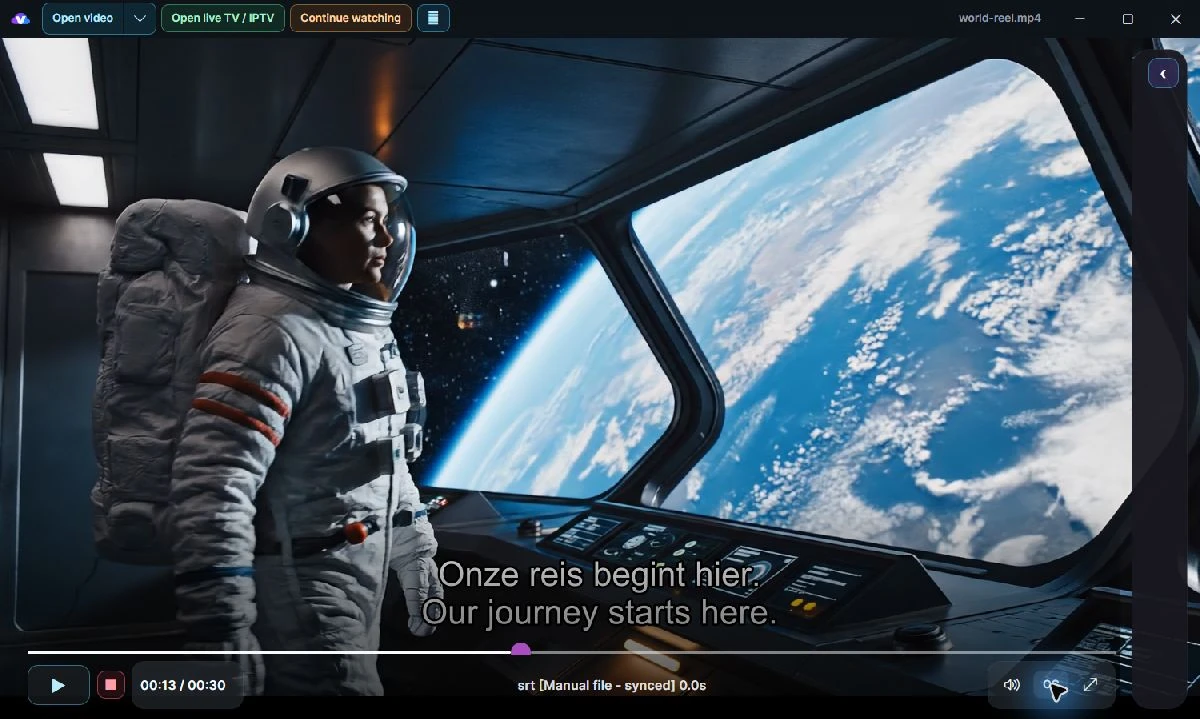
Recognize the active subtitle track
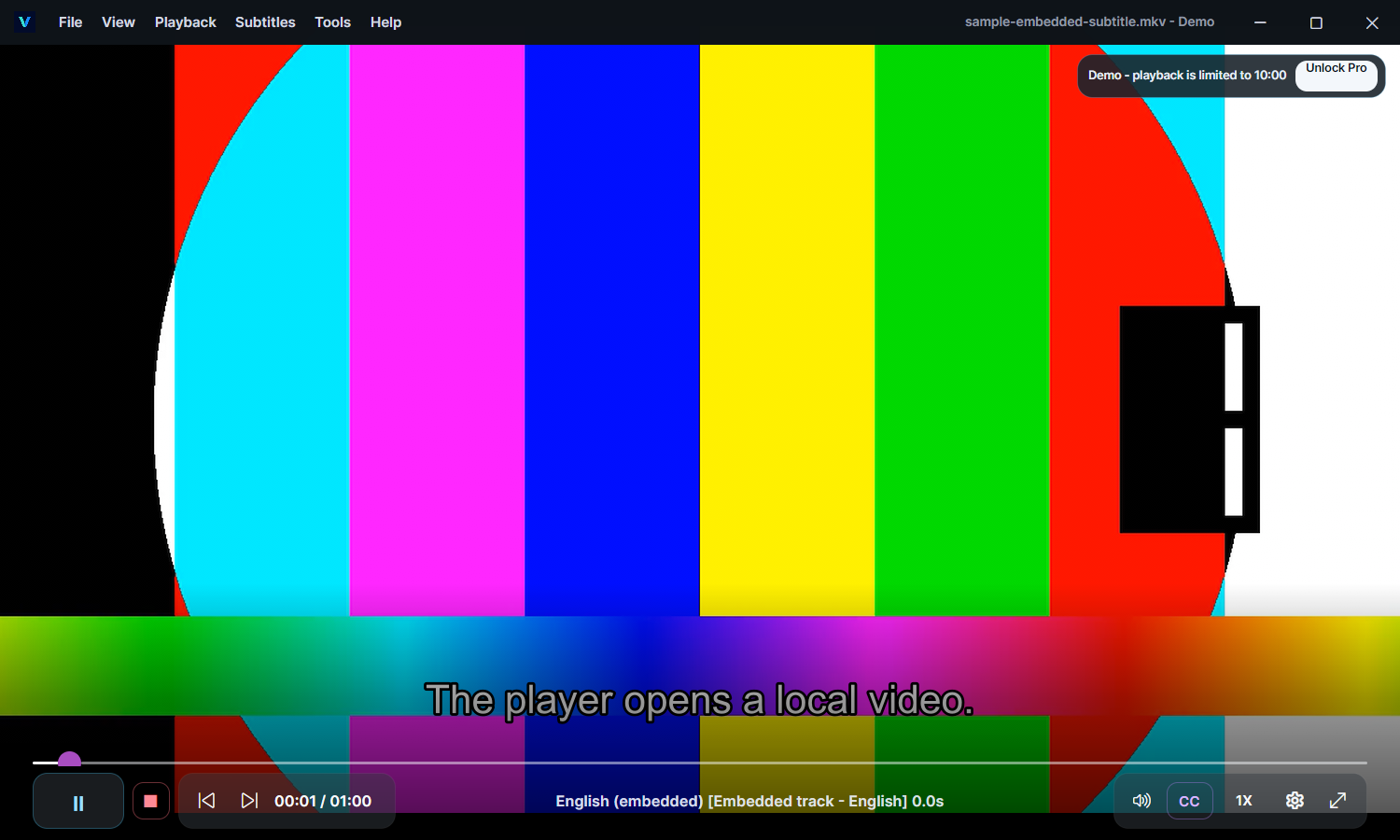
Sync subtitles and select the right language
- How do I sync subtitles with my video?
- Check the original SRT first. Translation also preserves any timing error already present. Find a matching subtitle or use a separate synchronization action. For a constant offset, check the subtitle delay. If the difference grows over time, the SRT may belong to another edit of the video.
- I still see the original language.
- Select the translated CC track and check that the job actually completed. A failed translation is no reason to delete a valid source file.
- Only PGS or DVB subtitles are available.
- These are image subtitles, not ordinary SRT text. Look for a suitable text subtitle. Renaming an image track to .srt does not turn it into translatable text.
- Translation is unavailable.
- Check that a text track is loaded and that the license, connection, provider settings and any Cloud balance support the chosen route.
Find the right route for your player
The Simple manual covers the guided Cloud route. Pro: translate subtitles explains the more detailed controls. To save a file, read Pro: export subtitles.
No useful SRT yet? Start with Missing English subtitles.
Continue with VoxFrame
Guided Cloud translation with its own license and plan. Want more control? Compare Simple and Pro below.